Setting up Single Sign-On
PolyAPI supports single sign-on (SSO) using OpenID Connect for your tenant users using your preferred identity provider. Whether you use a public identity provider like Google, Okta, Microsoft, or even if you have your own private identity provider: PolyAPI supports them.
Once you’ve created your PolyAPI tenant and have logged into the PolyAPI application, you’ll be able to start setting up single sign-on and allow your users to log into Poly.
Setting up Single Sign-On
Add your org or tenant id to your PolyAPI tenant. This is the id used by your SSO Identity Provider. For example if your team uses Google Workspace, then this will be the domain of your orgs’ email address, ex.
polyapi.io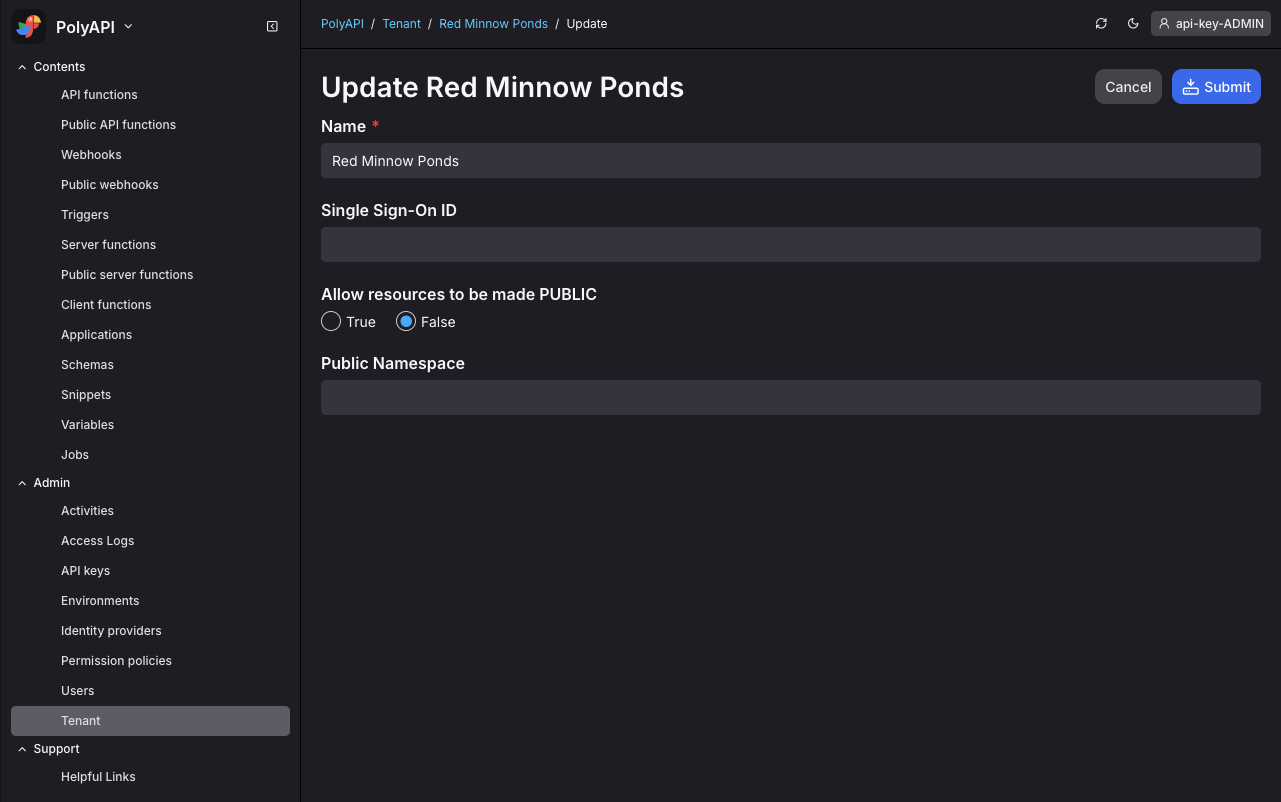
For each user on your team you wish to allow to SSO into Poly, create a User record in Poly and add their unique SSO ID to their profile. This is typically the id used as the
subclaim by your identity provider.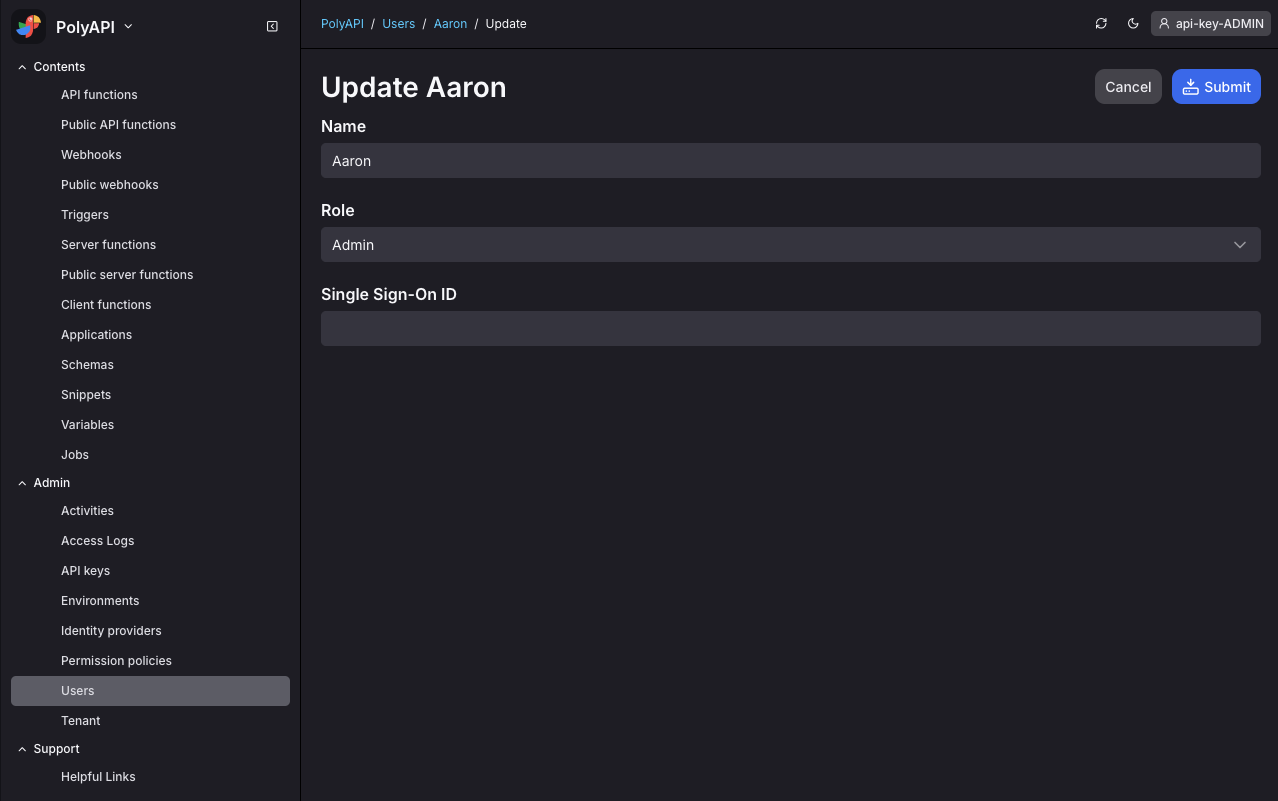
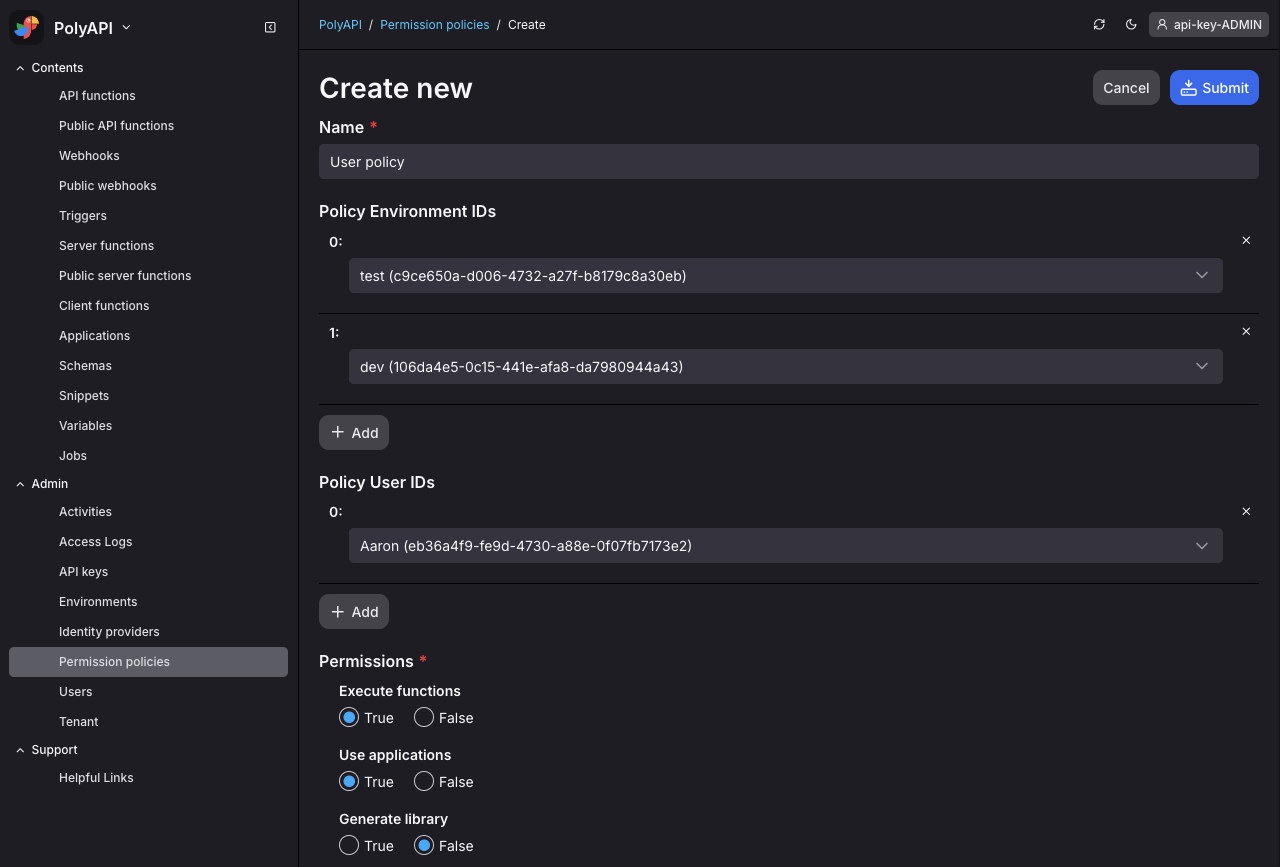
Configure one or more permission policies for your users which will grant them some set of permissions to one or more of your tenant environments.
Create a client application in your identity provider system. Your identity provider will assign your application a Client ID, and a Client Secret which you will need in the next step.
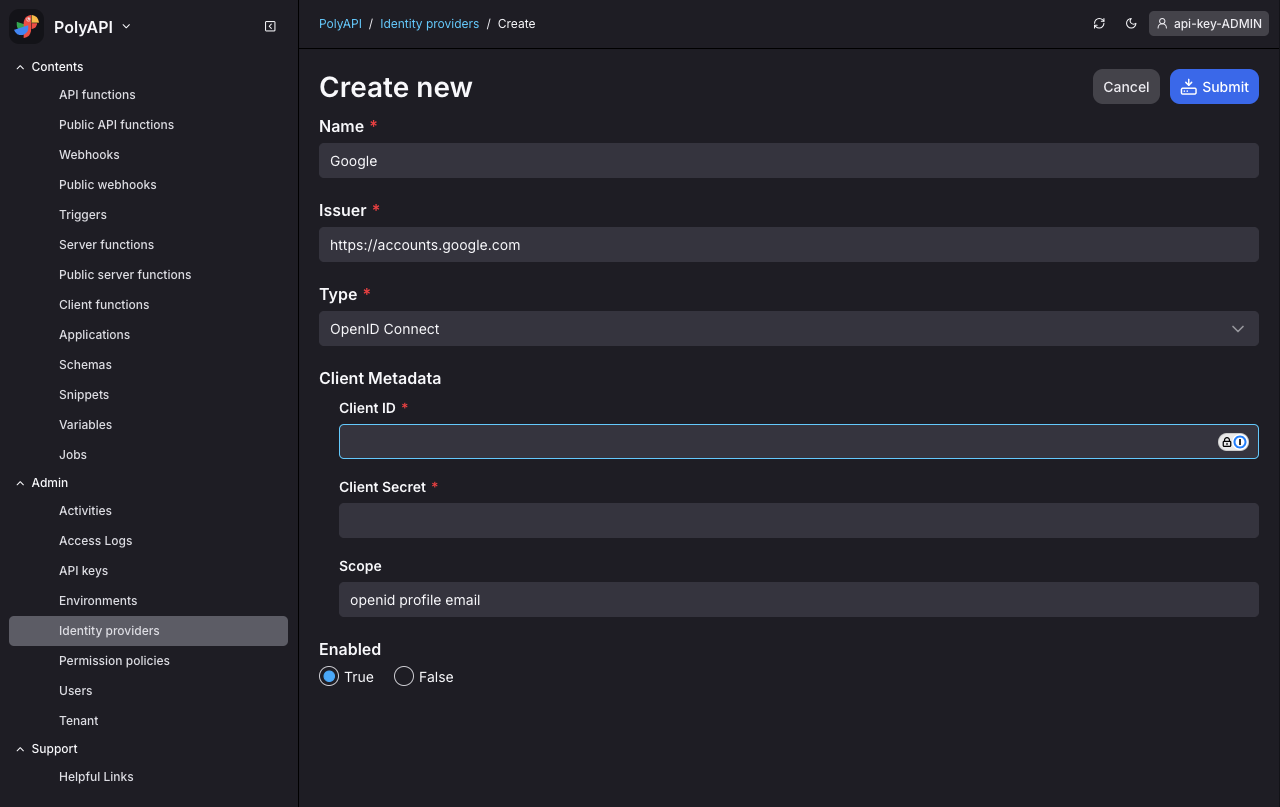
Register your identity provider in PolyAPI. Set the full url for your identity provider. For example if you’re using Google, then this would be
https://accounts.google.com. For providers like Okta, this will be your custom Okta domain which includes your custom subdomain.Enter the Client ID and Client Secret obtained in the previous step, and make sure you enable the identity provider.
Create a PolyAPI Application with
visibilityset toPUBLIC. This is the Canopy app your team opens to log in.Warning
SSO login fails for teammates if the Application
visibilityis notPUBLIC. Application visibility defaults toTENANTif you omit the field. That is not the same as making the app “public” in your IdP console (Google, Okta, …).If only the creator can use the login URL, or other users never see the SSO button, check Application visibility first.
Copy the template below. Set a unique
subpath, set"visibility": "PUBLIC", and put your identity provideridandnameinlogin.identityProviders.{ "name": "Your Tenant Name", "subpath": "unique-subpath", "visibility": "PUBLIC", "icon": "/canopy/PolyLogo.svg", "login": { "title": "Login To Poly", "logoSrc": "https://polyapi.io/wp-content/uploads/2024/07/polyapi-logo-color-2024.webp", "identityProviders": [ { "id": "UUID of your identity provider", "name": "Google" } ], "loginToPoly": true, "allowPolyApiKey": false, "redirectTo": "/polyui/collections/api-functions" }, "collections": [] }
A PUBLIC Application is not enough by itself. Users still need Poly User records with an SSO
sub(step 2) and permission policies that bind them to environments (step 3). See Authentication model.Once your PolyAPI application is created you’ll need to return to your identity provider and finish configuring the client application. Most providers need some or all of the following data:
Valid Domain:
https://na1.polyapi.ioRedirect URL:
https://na1.polyapi.io/canopy/unique-subpath/auth/finish-oauthLogin URL:
https://na1.polyapi.io/canopy/unique-subpath/loginLogout URL:
https://na1.polyapi.io/canopy/unique-subpath/logoutNote that the URLs provided here are for our NA1 instance. Please replace
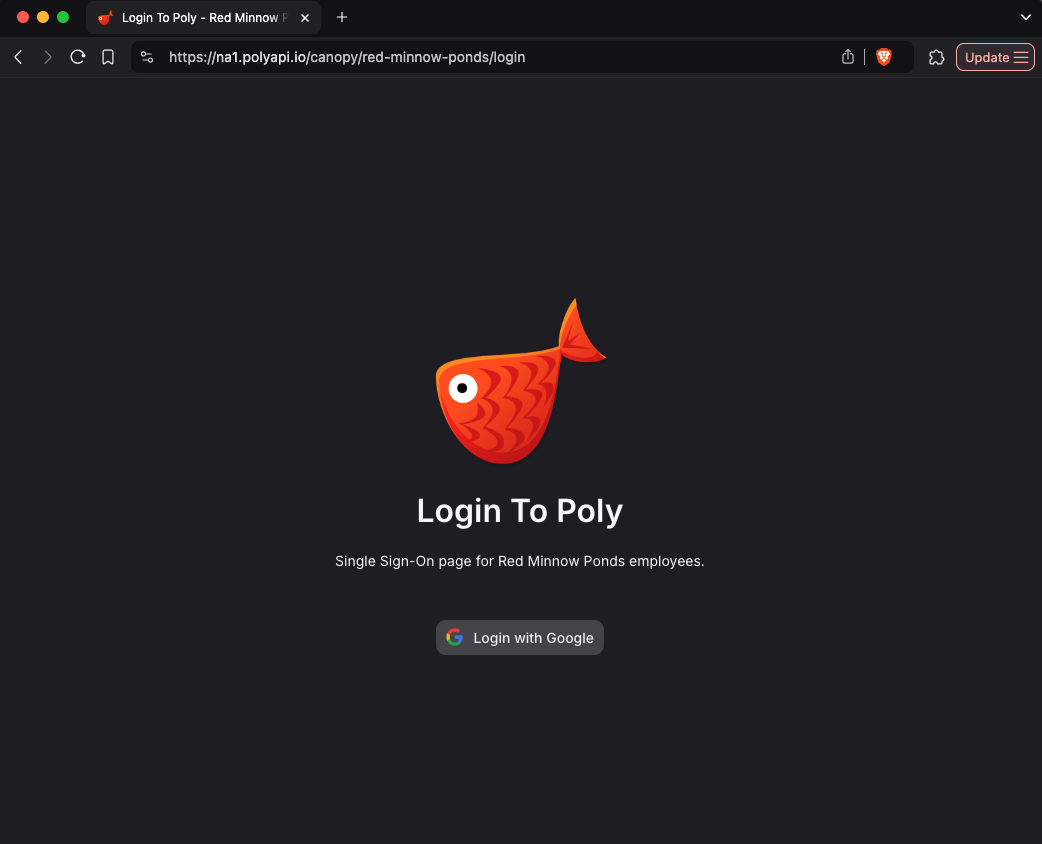
na1with your instance, ex.https://eu1.polyapi.ioorhttps://na2.polyapi.ioAt this point your team mates should be able to navigate to your canopy application:
https://na1.polyapi.io/canopy/unique-subpath/loginShare it with your team and have them bookmark this as their way of authenticating into PolyAPI.
Using SSO claims in a server function
After SSO login, Poly mints a short-lived API key for the session. Identity-provider claims are available to server functions as polyCustom.authData.claims. Use those claims for authorization in your own code. Do not treat a PUBLIC Application as the only access control.
SSO today is OIDC only. SAML is not supported for customers yet.